
Job Aids
- Home
- Job Aids
Delivering quick-reference tools that boost confidence, accuracy, and on-the-job performance.
Reset Candidate Password
“Quick-reference tools for on-the-job success.”
Description:
Everyone forgets a password now and then, including job candidates navigating the application process. This job aid was created to help HR and recruiting teams quickly assist candidates in resetting their Candidate Home password in Workday. The step-by-step layout ensures a smooth, consistent experience and reinforces a responsive, candidate-friendly hiring process.
Key Features:
- Clear Step-by-Step Format – ensures quick reference and easy application.
- Candidate-Focused Design – supports a positive experience during the hiring journey.
- Workday-Specific Instructions – tailored to the organization’s system and process.
- Efficient Support Tool – reduces confusion and saves time for both staff and candidates.
Default Inbox Filter
“Quick-reference tools for on-the-job success.”
Description:
Are you seeing the right tasks in your Workday inbox, or are you missing something important? Your Default Inbox Filters determine which items appear first, helping you stay focused on what matters most. Understanding and managing these filters ensure you never overlook a critical task again and stay on top of your daily workflow with ease.
Key Features:
- Clear Step-by-Step Format – shows exactly how to access and modify filters.
- Productivity Focused – helps you manage inbox tasks more efficiently.
- Visual Guidance – includes screenshots or icons for quick reference.
- Time-Saving Design – reduces clutter and ensures important actions are never missed.
Need Analyst Questions
“Quick-reference tools for on-the-job success.”
Description:
This job aid was created for a client whose instructional designers needed guidance when meeting with Subject Matter Experts (SMEs). Many team members struggled to identify the right questions to ask during project discovery sessions. This resource provides structured consulting questions that help instructional designers uncover key details, clarify learning goals, and define measurable outcomes, ensuring every SME meeting leads to actionable insights.
Key Features:
- Categorized Question Sets – organized by project phase and topic for easy reference.
- Conversation Starters – help build rapport and gather meaningful input from SMEs.
- Outcome-Focused Design – ensures discussions lead to clear, actionable next steps.
- Professional Development Tool – enhances confidence and consistency among instructional designers.
Deacom Training Icons
“Quick-reference tools for on-the-job success.”
Description:
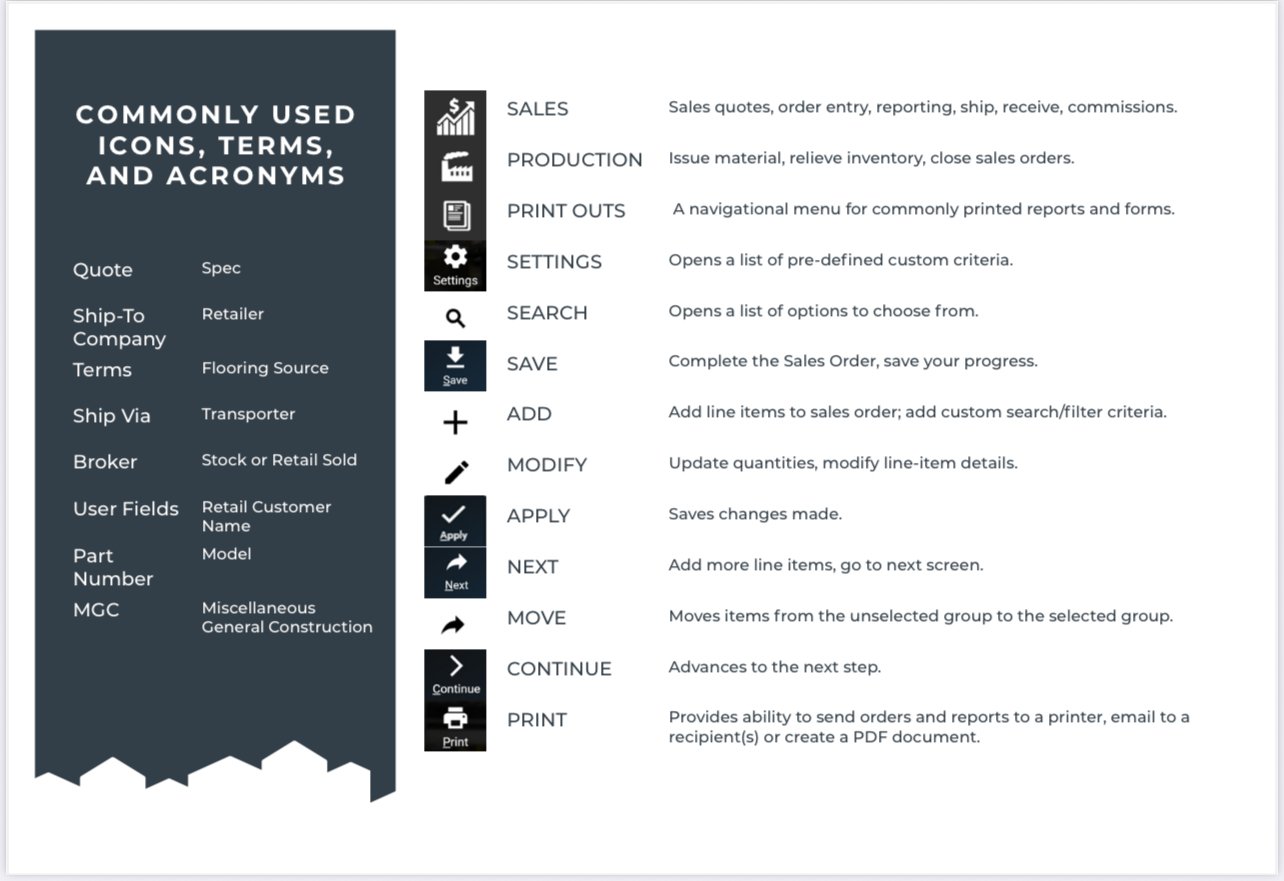
This job aid was created to complement an eLearning course by providing a quick visual reference for the icons used throughout the training. Each icon represents a specific concept, action, or system feature, helping learners easily connect visual cues to key tasks. The guide enhances consistency, supports visual learners, and reinforces understanding beyond the course itself.
Key Features:
- Visual Icon Library – displays icons with clear labels and definitions.
- Aligned with eLearning Content – supports continuity between training and job performance.
- User-Friendly Layout – designed for quick scanning and easy reference.
- Supports Visual Learners – enhances retention through visual reinforcement.
Job Aids: Here is the tag line:
Delivering quick-reference tools that boost confidence, accuracy, and on-the-job performance.
Title: Reset Candidate Password
“Quick-reference tools for on-the-job success.”
Description:
Everyone forgets a password now and then, including job candidates navigating the application process. This job aid was created to help HR and recruiting teams quickly assist candidates in resetting their Candidate Home password in Workday. The step-by-step layout ensures a smooth, consistent experience and reinforces a responsive, candidate-friendly hiring process.
Key Features:
- Clear Step-by-Step Format – ensures quick reference and easy application.
- Candidate-Focused Design – supports a positive experience during the hiring journey.
- Workday-Specific Instructions – tailored to the organization’s system and process.
- Efficient Support Tool – reduces confusion and saves time for both staff and candidates.
Title: Default Inbox Filter
“Quick-reference tools for on-the-job success.”
Description:
Are you seeing the right tasks in your Workday inbox, or are you missing something important? Your Default Inbox Filters determine which items appear first, helping you stay focused on what matters most. Understanding and managing these filters ensure you never overlook a critical task again and stay on top of your daily workflow with ease.
Key Features:
- Clear Step-by-Step Format – shows exactly how to access and modify filters.
- Productivity Focused – helps you manage inbox tasks more efficiently.
- Visual Guidance – includes screenshots or icons for quick reference.
- Time-Saving Design – reduces clutter and ensures important actions are never missed.
Job Aid Title: Need Analyst Questions
“Quick-reference tools for on-the-job success.”
Description:
This job aid was created for a client whose instructional designers needed guidance when meeting with Subject Matter Experts (SMEs). Many team members struggled to identify the right questions to ask during project discovery sessions. This resource provides structured consulting questions that help instructional designers uncover key details, clarify learning goals, and define measurable outcomes, ensuring every SME meeting leads to actionable insights.
Key Features:
- Categorized Question Sets – organized by project phase and topic for easy reference.
- Conversation Starters – help build rapport and gather meaningful input from SMEs.
- Outcome-Focused Design – ensures discussions lead to clear, actionable next steps.
- Professional Development Tool – enhances confidence and consistency among instructional designers.
Job Aid Title: Deacom Training Icons
“Quick-reference tools for on-the-job success.”
Description:
This job aid was created to complement an eLearning course by providing a quick visual reference for the icons used throughout the training. Each icon represents a specific concept, action, or system feature, helping learners easily connect visual cues to key tasks. The guide enhances consistency, supports visual learners, and reinforces understanding beyond the course itself.
Key Features:
- Visual Icon Library – displays icons with clear labels and definitions.
- Aligned with eLearning Content – supports continuity between training and job performance.
- User-Friendly Layout – designed for quick scanning and easy reference.
- Supports Visual Learners – enhances retention through visual reinforcement.